Raytac MDBT50Q-RX 0040
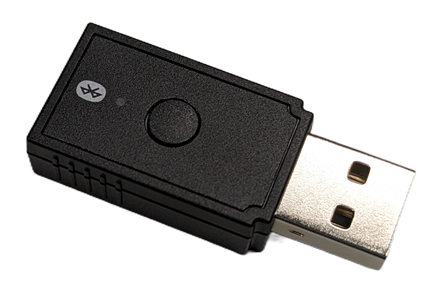
Description
Raytac MDBT50Q-RX 0040 is a USB powered extender. Extenders are used to extend the range and number of node connections in a network. The device is must be powered by a 5V source via the USB plug, typically using a USB power adapter or a 5V wired network. Meshtech recommends USB power adapters from SmartLine. The following USB Charger 1A is recommended to power Raytac MDBT50Q-RX 0040.
This hardware is sourced from Raytac Corporation. See MDBT50Q-RX for hardware details.
The Bluetooth chipset is nRF52840 from Nordic Semiconductor.
Firmware Model Number: 0x0040
Downlinks: Up to 18
DFU Type: BLE SMP
Normal Operation Procedure
This device will operate as extender by default, but it can also operate as a gateway (root extender) if connected to a gateway host. It will only work as a gateway if plugged into a gateway host before it has been configured as an extender (switched out of storage mode). If the device has been configured as extender, a factory reset must be performed before plugging it into a gateway host to use it as a gateway. Similar to all Meshtech extenders the Raytac MDBT50Q-RX 0040 is delivered in storage mode. The normal operation device-mode for this device is connected. The device is discoverable from nearby systems after 5V is applied on USB port, generating storage mode events.
Wireless range will depend on many factors and are reduced by obstacles and other devices’ wireless interference. Typically around 15m between extenders in an indoor environment - further is possible if line of sight/outdoor/minimal interference, shorter might be required to get through thick walls/interference.
For best performance it is recommended to follow these rough guidelines when deploying extenders:
Start near a gateway.
Line of sight or minimal number of obstacles between extenders where possible.
Two or more possible uplink devices towards gateway.
Mount above person height if on wall. Avoid mounting closer than 30cm from ceiling and corner/walls. If mounting on ceiling, avoid mounting closer than 30cm from walls.
Avoid mounting so antenna is touching metal.
Service Mode
Service Mode can be used to perform DFU upgrades and/or factory reset of a device when provisioning information (i.e. network key) is unknown/lost. To enter Service Mode, button need to be pressed while powering on device - then released within 5 seconds. Device being in Service Mode is indicated by blue LED blinking rapidly. Device is discoverable by “SM0040-{firmware_version}” device name while in Service Mode. It runs BLE SMP and can be connected to and upgraded. To perform factory reset, press button continuously for more than 5 seconds while device is in Service Mode. Blue LED will light constant while button is held, and should be held until blue LED turn off (5s) to perform factory reset. If no connection is established or no factory reset command is received, device will reboot and start in previous mode after 2 minute timeout. Timeout is extended while BLE connection is established and for additional 2 minutes after disconnect.
Device Modes
Connected
Storage
Properties
Property |
Reported |
Default Value |
From Version |
|---|---|---|---|
Yes |
- |
||
Yes |
- |
||
Yes |
- |
||
No |
- |
||
No |
- |
||
Yes |
- |
||
No |
- |
||
No |
- |
||
No |
- |
2.0.0 |
|
Yes |
0x0000000000 |
2.0.0 |
|
No |
- |
2.0.0 |
|
No |
- |
2.0.0 |
|
Yes |
0x01 |
||
No |
- |
||
No |
- |
2.3.0 |
|
No |
- |
2.0.0 |
|
Yes |
0x03 |
||
Yes |
- |
||
- |
- |
||
- |
- |
||
No |
NULL |
2.2.0 |
|
No |
0x0000 |
||
No |
0x00000000 |
1.2.0 |
|
Yes |
0x00 |
||
Yes |
0x03000112 |
||
Yes |
0x00 |
2.1.0 |
|
No |
0x000000 |
||
- |
- |
||
- |
- |
||
- |
- |
||
- |
- |
||
No |
0x00000000 |
||
- |
- |
2.3.0 |
|
No |
0xFFFFFFFF |
2.3.0 |
|
- |
- |
||
- |
- |
||
Yes |
0x0000 |
||
Yes |
0x02 |
||
No |
NULL |
2.3.0 |
|
Yes |
0x0002 |
1.1.0 |
|
Yes |
0x18 (24 %) |
||
Yes |
0x00 |
||
Yes |
0x000000000000 |
||
- |
- |
2.3.0 |
|
- |
- |
2.3.0 |
|
Yes |
0xA6 (-90) |
||
Yes |
- |
||
Yes |
0x00000000 |
||
- |
- |
1.1.0 |
Measurements
Measurement |
From Version |
|---|---|
Events
Event |
From Version |
|---|---|
1.1.0 |
|
2.3.0 |