IOx Gateway 2021
Description
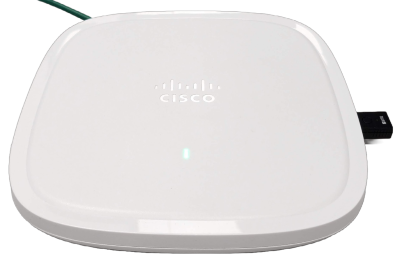
IOx Gateway 2021 is a Cisco IOx application running the Meshtech Gateway Host. Combined with the Raytac MDBT50Q-RX 0040 extender dongle this enables access to the Meshtech network and uplink connectivity to the customer backend. The IOx application communicates via the Cisco Access Point to ensure secure and reliable network connectivity.
Configuration and monitoring of the gateway is available through Meshtech Device Management Portal.
Firmware Model Number: 0x2021
Downlinks: Up to 18
Properties
Property |
Reported |
Default Value |
From Version |
|---|---|---|---|
Yes |
- |
||
Yes |
- |
||
Yes |
- |
||
No |
- |
||
No |
- |
||
Yes |
- |
||
No |
- |
||
No |
- |
||
No |
- |
||
Yes |
- |
9.2.0 |
|
Yes |
0x01 |
9.4.0 |
|
No |
- |
8.0.0 |
|
Yes |
0x0000000000 |
8.0.0 |
|
No |
- |
8.0.0 |
|
No |
- |
8.0.0 |
|
Yes |
- |
||
No |
- |
8.0.0 |
|
No |
- |
8.0.0 |
|
No |
[ ] |
8.0.0 |
|
No |
[ ] |
8.0.0 |
|
No |
- |
||
No |
- |
9.5.0 |
|
No |
- |
8.0.0 |
|
No |
- |
9.4.0 |
|
Yes |
0x02 |
||
Yes |
|||
- |
|||
- |
|||
- |
|||
Yes |
|||
- |
|||
No |
0x00000000 |
||
Yes |
0x03000112 |
||
Yes |
0x00 |
||
Yes |
0x00 |
||
Yes |
0x01 (true) |
||
Yes |
0x01 (true) |
||
Yes |
0x01 (true) |
||
Yes |
0x00 |
||
No |
0x000000 |
||
Yes |
0x00 |
||
Yes |
0x00 |
||
Yes |
0x00 |
||
Yes |
0x00 |
||
Yes |
0x00 |
||
Yes |
0x00 |
||
- |
- |
||
- |
- |
||
- |
- |
||
- |
- |
||
No |
0x00000000 |
||
- |
- |
9.5.0 |
|
- |
- |
||
- |
- |
||
No |
- |
||
- |
|||
Yes |
0x0000 |
||
Yes |
0x02 |
||
No |
0x00000000 |
||
No |
0x00000000 |
||
No |
0x00000000 |
||
No |
0x00000000 |
||
No |
NULL |
9.5.0 |
|
Yes |
0x0002 |
||
No |
NULL |
8.0.0 |
|
- |
- |
9.5.0 |
|
Yes |
0x18 (24 %) |
||
Yes |
0x00 |
||
Yes |
0xA6 (-90) |
||
No |
NULL |
9.4.0 |
|
- |
- |
Note
Scan Window range is 5 - 95 %. It is highly recommended to not increase scan-window above 24 % (default). Increases beyond 24 % can negatively affect throughput.
Note
After performing factory-reset (by writing 0x8301 - Factory Reset command property) it is necessary to “Clear token” in Device Management before gateway can provision itself if you use same USB BLE adapter. You will also need to activate and send required configuration (typically backend.json) to use it again.
Note
Performing factory reset of a paired Raytac MDBT50Q-RX 0040 (by pressing button while applying power, then additional button press for 5+sec) will also cause host to factory reset.
Note
IOx Gateway 2021 must be upgraded via Cisco DNA Center or the ioxclient command line tool provided as part of Cisco IOx SDK.
Measurements
Measurement |
From Version |
|---|---|
Events
Event |
From Version |
|---|---|
9.5.0 |
Supported Targets
Most access points from the Cisco Catalyst 9100 Family are supported, for example Cisco Catalyst 9120.
Hosting Requirements:
CPU Architecture: ARM 64 bit
CPU: 4800 Units
Memory: 100 MB
Disk: 10 MB
Installation
This section describes how to install using the ioxclient command line tool from Cisco. The ioxclient tool is primarily to be used by developers and is used to manage IOx applications on Cisco devices.
Note
To install using Cisco DNA Center, please refer to the Cisco Deployment Guide.
The installation process consists of two main parts:
Installation of app on Cisco device.
Claiming and Activation of gateway in Meshtech Device Management Portal.
To start the installation you need:
A Cisco device supporting Cisco Application Hosting.
A Raytac MDBT50Q-RX 0040 dongle.
A user login (customer) at Meshtech Device Management Portal.
Before installing the app, ioxclient must be installed on the PC/server. ioxclient can be downloaded from Cisco at https://developer.cisco.com/docs/iox/#!iox-resource-downloads.
When you have installed ioxclient you need to create a profile where you specify the connection details for your device. To create a new profile run the following command:
ioxclient profiles create
You will be asked to enter various configuration settings. After you have answered the questions, the profile will be created and activated.
Installation of the app is done in 4 steps:
Download IOx Application Firmware
Install
Activate
Start
Download IOx Application Firmware
Log into Meshtech Device Management at iot.meshtech.no
Go to the Firmware section and expand IOx Gateway 2021
Download the .tar installation file by clicking the Download button for the latest version.
Install
To install the application to the Cisco device, run the following command:
ioxclient app install IOx_Gateway_2021 <application filename>
This will install the IOx Gateway 2021 application to your device with the
name IOx_Gateway_2021. This name is used later to refer to this application
instance.
Activate
To activate the application, you need to prepare an activation.json file with the following content:
{
  "resources": {
    "profile": "custom",
    "cpu": 4800,
    "memory": 100,
    "disk": 10,
    "network": [
      {
        "interface-name": "eth0"
      }
    ],
    "devices": [
      {
        "type": "serial",
        "label": "HOST_DEV_BLEGW",
        "device-id": "/dev/ttyiote0",
        "usage": "Raytac MDBT50Q-RX 0040 (BLE GW)"
      }
    ]
  }
}
Note
Notice that the serial device must have the label HOST_DEV_BLEGW.
Then, run the following command:
ioxclient app activate --payload activation.json IOx_Gateway_2021
Start
Now, you can start the application with the following command:
ioxclient app start IOx_Gateway_2021
With the app installed and running, the gateway can be claimed and activated.
Note
When reinstalling, the device token must be cleared in Device Management. Otherwise, the newly installed app will not be able to connect to Device Management. Click the CLEAR TOKEN button in the INFORMATION tab.
Claim and Activate
With the IOx application running, insert the Raytac MDBT50Q-RX 0040 dongle into the USB port of the Cisco device. Within a few seconds, the IOx app will now detect the dongle is present and register the gateway at iot.meshtech.no. To claim the gateway, log in at iot.meshtech.no and click the Claim button. Enter the serial number (SN) of the Cisco device to claim the gateway.
Upon successful claim, the gateway should be available from iot.meshtech.no and assigned to the customer that claimed it. The ID of the gateway is the MAC Address (lowercase) of the Raytac MDBT50Q-RX 0040 BLE adapter (BLE GW).
To use the gateway, it must first be activated. Go to the Activation tab and click Activate. Now, the gateway is scanning and will start to build the sensor network.
Typically, you would also want to set a backend configuration in order to interact with the sensor network.
Upgrading
To upgrade the application, use the following commands:
Stop -
ioxclient app stop IOx_Gateway_2021Deactivate -
ioxclient app deactivate IOx_Gateway_2021Upgrade -
ioxclient app upgrade IOx_Gateway_2021 IOxGateway_2021_7_1_0.tarActivate -
ioxclient app activate --payload activation.json IOx_Gateway_2021Start -
ioxclient app start IOx_Gateway_2021
During upgrade, when asked to preserve configuration, select ‘y’ (yes).
Root Certificates Management
Additional root certificates (in PEM format) can be added using 0x8030 - Add Root Certificate or
removed using 0x8031 - Remove Root Certificate.
The current set of additional root certificates can be read using 0x8032 - Root Certificates and
0x8033 - Root Certificate Fingerprints.
Root Certificates are needed for accessing HTTPS endpoints that present a certificate not signed by an official trusted certificate authority (CA).
History
Version |
Description |
|---|---|
9.2.0 |
0x8861 - Salto Endpoint (BETA) removed |
9.1.0 |
|
9.1.0 |
|
9.1.0 |
Release Notes
Licenses
Component |
License(s) |
|---|---|
MIT |
|
MIT |
|
Apache-2.0 |
|
MIT, Apache-2.0 |
|
MPL-2.0, MIT |
|
GPL-2.0-or-later, LGPL-2.1-or-later |
|
Apache-2.0 |
|
GPL-2.0-or-later, LGPL-2.1-or-later |
|
Public-Domain |
|
MIT |